
Runs in your browser, no installation
The virtual office for remote teams
In Agorium you see who on your team is around and talk to them right away, without sending an invite or a link first. Chat, tasks and files are in the same tool.
- No download needed
- Guests join by link
- Works on your phone too
How it works
How to get started with your team
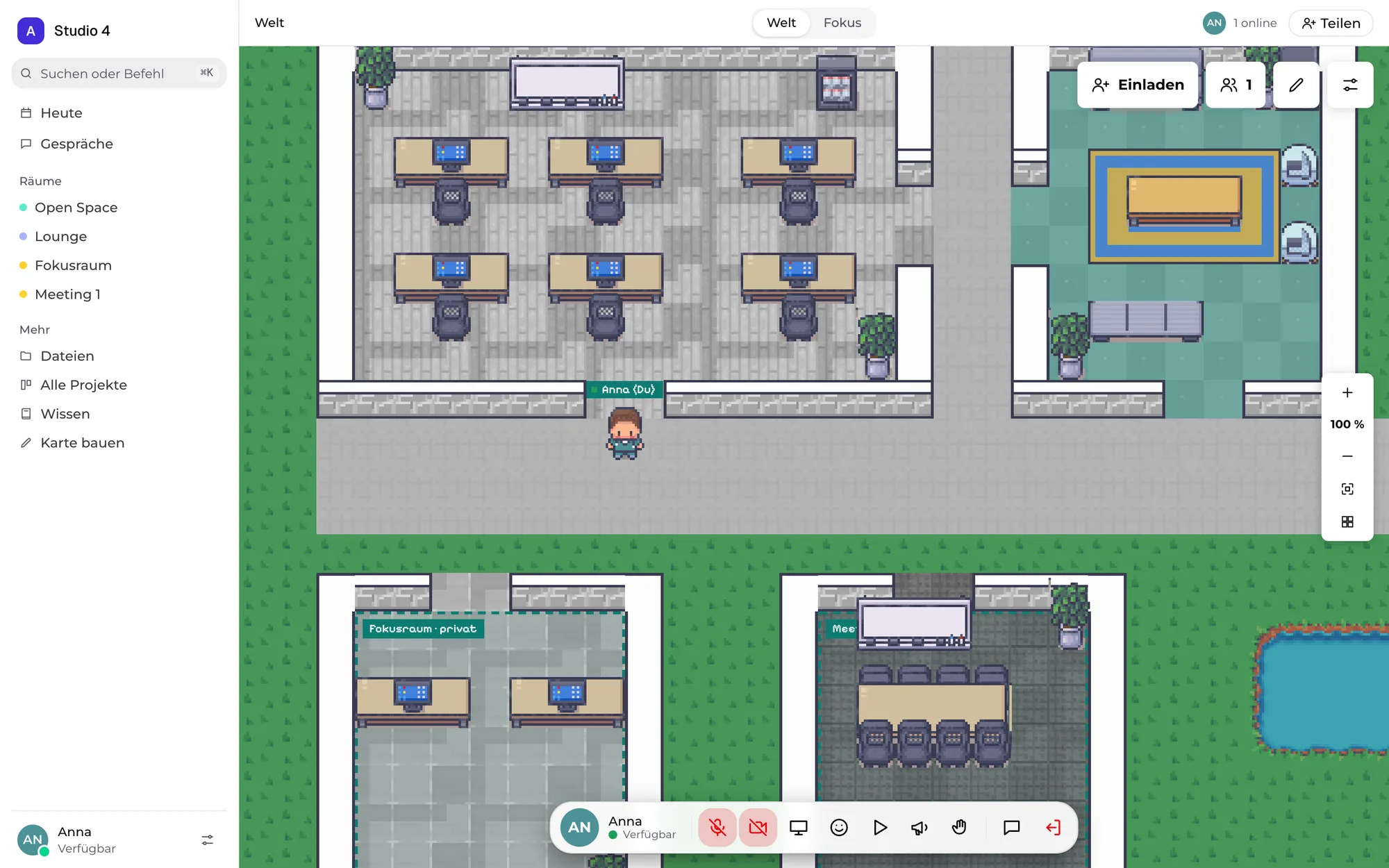
You create a space, send the link to your team, and you can all see who is online.
Create a space
You pick a ready-made map or design your office yourself, with rooms, furniture and areas for quiet work and meetings.
Invite your team
You send an invitation link. Depending on their role, members, builders and guests can do different things.
Talk to each other
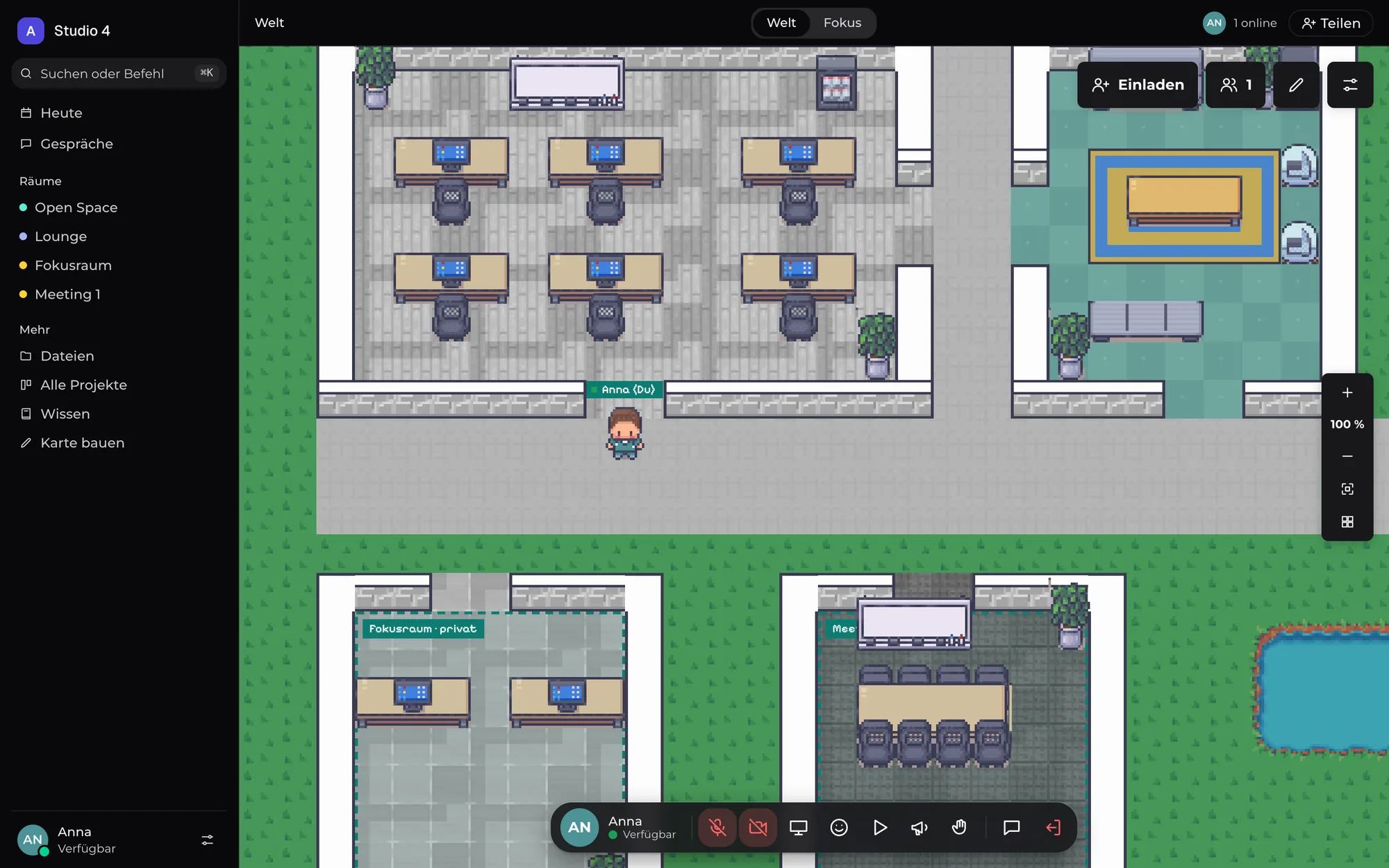
Everyone has an avatar on the map. People who stand close together hear and see each other and can talk right away.
Features
What you need to work together
Video, chat, tasks and files are in one tool, so you don't have to keep switching between apps.
- Video
Talk directly to people nearby
Camera, microphone and screen sharing run in the browser. The further someone is from you on the map, the quieter they are.
- Meetings
Meetings in private rooms
In the conference room the conversation starts as soon as someone joins the meeting. There is a stage for shared screens, a chat for the room and, if you like, a local recording.
- Chat
Channels, threads and direct messages
You write in channels, in room chats or directly to one person, and you can use reactions and mentions.
- Tasks
Projects and tasks
A task board, tables and your own databases, plus a My tasks view with everything that is on your plate.
- Files
Files up to 2 GB
You organise files in folders, decide who may see them and send them straight to people near you.
- Whiteboard
Shared whiteboard
You work at the same time with sticky notes, shapes, arrows and a pen on a surface of any size.
- Map editor
Design the office yourself
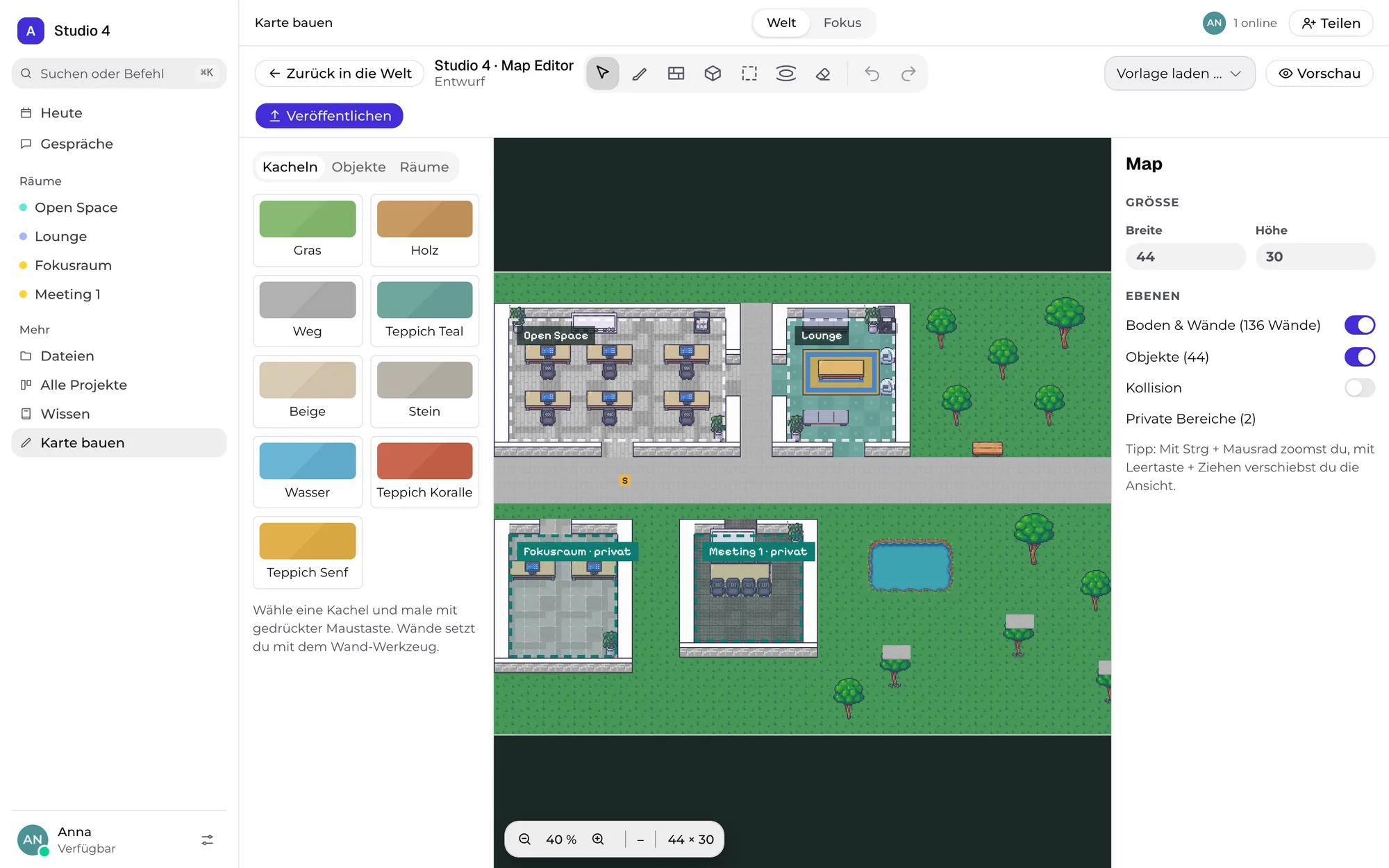
You place floors, walls, furniture, areas and portals as a draft and publish the map once it is ready.
Map editor
Design the office the way you work
In the map editor you build the map for your team, for example with a tea kitchen, an open-plan area and quiet rooms.
- Place and rotate floors, walls and furniture
- Create private areas and portals between rooms
- Work with a draft and autosave, then publish for everyone
AI agents
AI agents work with your team
You can bring Claude, ChatGPT or your own agents into the space. An agent gets its own avatar, answers when you talk to it and helps in projects as far as you allow.
- Connects through MCP with OAuth, with no tokens to copy
- Answers appear as a speech bubble with a subtitle
- Permissions per agent, and the admin can pause all agents
Questions
Frequently asked questions
Do I have to install anything?
No, Agorium runs in the browser. You set up a new space in a few clicks, and your team joins through an invitation link.
How does talking by proximity work?
People who stand close together hear and see each other. On open ground the volume drops with distance. In private rooms the connection only starts when someone joins the meeting, and anyone who just stands in the room uses no bandwidth.
Does Agorium work on a phone?
Yes, the layout adapts. You get a tab bar, a joystick for walking and buttons for the most important actions.
Can guests take part?
Yes. Guests join through a link, with a password if you like. The admin sets what members, builders and guests may do through roles.
How do I connect an AI agent?
You enter the MCP address in Claude, ChatGPT, Hermes, OpenClaw or another MCP app and agree in the browser. There is also a WebSocket interface and webhook agents.
What can agents do in the space?
They walk, sit down, write in chat and wave, place sticky notes on whiteboards and join meetings. They also work in projects and tasks as far as a person allows.
Can I record meetings?
Yes, as a file on your device. You choose whether to record only yourself, yourself with camera or the whole meeting with every voice. Everyone involved sees a notice while it runs.
Get started with your team
Create a space and send the link to your team. Setting it up takes just a few clicks.